

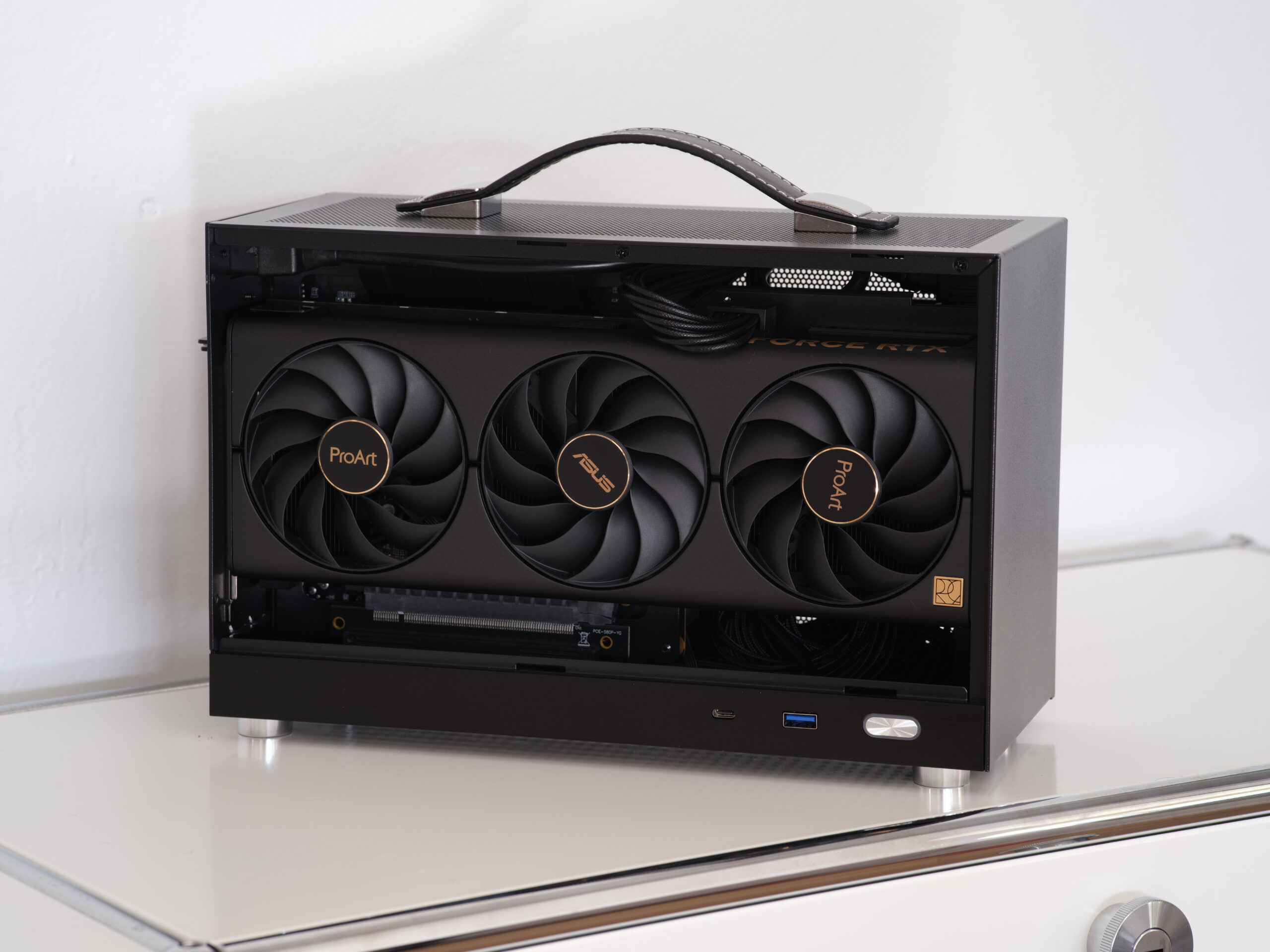
A vertical mount GPU is one of the most striking upgrades you can make to a modern gaming PC. Instead of slotting your graphics card horizontally into the PCIe slot so that its fans face the floor of the case, a vertical GPU mount rotates the card ninety degrees so the fans, shroud artwork and any RGB lighting face outward through the side panel. The result is a cleaner, more dramatic build that also solves one of the most persistent annoyances in PC building: GPU sag.
In this guide, we explain exactly what a vertical GPU mount is, weigh up the real benefits and trade-offs, show you how to choose a reliable PCIe riser cable, and walk you through the installation step by step — safely, and without risking your hardware. Whether you are building a showcase system or simply want to protect an expensive graphics card, here is everything you need to know before you mount your GPU vertically.
What Is a Vertical GPU Mount?
A vertical GPU mount is a bracket or mounting kit that repositions your graphics card so it stands upright inside your case, parallel to the motherboard rather than perpendicular to it. Because the motherboard’s PCIe x16 slot runs along the board horizontally, the card cannot plug into it directly in this orientation. Instead, the mount relies on a PCIe riser cable: a flexible extension with a PCIe slot on one end and an edge connector on the other.
The edge connector plugs into your motherboard’s PCIe x16 slot exactly as a normal graphics card would, while the riser cable carries the signal across to the slot mounted on the bracket. Your GPU then slots into that bracket-mounted connector and is screwed into place, standing vertically with its fans facing the side panel. Because the signal now travels further than a direct slot connection, the quality of the riser cable matters enormously — a poor cable can introduce signal errors, random crashes or even a complete failure to boot.
Benefits of a Vertical Mount GPU
Show Off Your Graphics Card
The biggest reason most builders choose a vertical mount GPU is aesthetics. Modern graphics cards are designed to look good: sculpted shrouds, triple-fan arrays, backlit logos and addressable RGB lighting. In a traditional horizontal installation, all of that faces the floor of the case, hidden from view. Mount the card vertically behind a tempered glass side panel and the entire face of the card becomes the visual centrepiece of your build.
This matters most in showcase builds with custom water cooling or synchronised lighting, where the graphics card is often the most expensive — and the most attractive — component in the system. A vertical mount finally lets you display it instead of hiding it.
Prevent GPU Sag
High-end graphics cards have grown enormous, with some flagship models weighing well over two kilograms and spanning three or four expansion slots. Hung horizontally from the PCIe slot, that weight gradually bends the card and strains the slot, the motherboard and the solder joints — the phenomenon builders call GPU sag.
A vertical GPU mount removes the problem entirely by supporting the card along its length. The card’s weight is carried by the bracket and the case frame rather than hanging from the motherboard connector, which reduces mechanical stress on the card, the slot and the board itself. If you own a heavy triple-fan card, this structural benefit alone can justify the upgrade.
Cooling Considerations for Vertical GPU Mounting
Vertical mounting changes how air flows around your graphics card, and this is where the real trade-offs live. In a horizontal installation, the GPU’s fans draw cool air from the open space beneath the card and push heat upward and out of the case. Turned vertically, the fans sit parallel to the side panel and must pull air through a much narrower gap.
If your case has a solid tempered glass side panel and the card ends up only a few millimetres away from it, the fans will be starved of air. Temperatures can climb noticeably — typically a few degrees, but in cramped cases the difference can be far larger, with the fans spinning faster and louder to compensate. For the best results, leave a generous gap between the GPU fans and the side panel, and make sure the case has strong overall airflow.
Cases with mesh or perforated side panels handle vertical mounting far better than solid glass designs, because the GPU can draw fresh air directly through the panel. Pay attention to the rest of your cooling layout as well: front intake fans, top exhaust and radiator placement all interact with the new airflow pattern, so re-check your temperatures with a stress test after installation rather than assuming everything is fine.
Compatibility and Case Requirements
Not every case supports vertical GPU mounting, so check before buying a kit. Many modern mid-tower and full-tower cases include vertical mounting slots built into the chassis, next to the standard horizontal expansion slots — the vertical slits you may have noticed beside the regular slot covers. If your case has them, you typically only need a PCIe riser cable and the mounting bracket, which is sometimes included with the case or sold as an accessory.
If your case lacks built-in vertical slots, universal vertical GPU mount kits are available that replace several horizontal expansion slot covers with a dedicated bracket. These work with most ATX cases, but always confirm the dimensions: the bracket assembly needs enough depth for your card’s length and enough width for triple-slot coolers, and the card must still clear drive cages, radiators and cable routing channels.
Also confirm your motherboard and GPU combination. The riser cable’s PCIe generation should match what your graphics card expects — pairing a PCIe 4.0 card with a PCIe 3.0 riser is one of the most common causes of black screens after a vertical mount installation. Most motherboards let you force the slot to an older generation in the BIOS, which solves the problem at a small potential cost in bandwidth, as we explain in the installation steps below.
Finally, think about the scale of your build. Vertical mounting shines in spacious tempered-glass cases, but in very compact systems the trade-offs multiply: clearances shrink and airflow suffers. If you are planning a small-form-factor system, read our Mini ITX gaming PC build guide first to understand the space and thermal constraints you will be working with.
PCIe Riser Cable Types and Quality
The riser cable is the single most important part of a vertical mount GPU setup, and it is the component you should never buy on price alone. Riser cables come in PCIe 3.0, 4.0 and 5.0 variants, and the cable should support at least the PCIe generation your graphics card uses. A Gen 3 cable will physically connect a Gen 4 card, but the motherboard’s automatic link negotiation can fail across the extra cable length, producing crashes, graphical artefacts or a system that refuses to start.
Quality differences between cables are stark. Well-made risers use individually shielded wire pairs, robust connectors and careful impedance control to preserve signal integrity along the cable. Cheap unshielded cables are far more vulnerable to electromagnetic interference from the rest of your system, and the symptoms — random black screens, driver crashes, PCIe link retraining — are maddening to diagnose because they look exactly like a faulty graphics card.
Keep the cable as short as your layout allows, since longer cables degrade the signal further. Avoid sharp bends and tight coils, route the cable away from power supply wiring where possible, and make sure both connectors seat fully — a partially inserted riser is another classic source of instability. For a second opinion from an established hardware outlet, PC Guide’s walkthrough of the vertical mounting process is a useful companion read.

How to Vertically Mount Your GPU: Step-by-Step Installation
- Power down and disconnect everything. Shut down the PC, switch off the power supply, unplug the mains cable and hold the power button for a few seconds to discharge residual power. Ground yourself with an anti-static wrist strap, or by touching the bare metal of the case regularly.
- Open the case and remove the graphics card. Take off the side panel, disconnect the PCIe power cables from your GPU, undo the rear bracket screws and release the PCIe slot latch before lifting the card straight out. Set it down on an anti-static surface.
- Fit the vertical mount bracket. Remove the expansion slot covers where the bracket will sit, then secure the vertical mount bracket to the case with the supplied screws. If your case has native vertical slots, this step is usually just a matter of dropping the bracket into place.
- Install the riser cable into the motherboard. Plug the riser’s edge connector firmly into the primary PCIe x16 slot until the latch clicks, exactly as you would seat a graphics card. Route the cable toward the bracket, keeping bends gentle and avoiding contact with sharp metal edges.
- Secure the riser to the bracket. Fasten the riser’s slot end to the vertical bracket with the provided screws or clips so the connector cannot flex or work loose. A riser that can move is a riser that will eventually cause problems.
- Mount the graphics card. Lower the GPU into the bracket’s PCIe slot until it clicks, then screw the card’s rear bracket to the mount. The card should sit level and feel completely solid, with no wobble.
- Reconnect power and tidy the cables. Plug the PCIe power cables back into the card, route the riser and power cables so they do not press against fans or the side panel, and refit the side panel.
- Boot up and configure. Power on and enter the BIOS. If you are using an older-generation riser with a newer GPU, set the PCIe slot to the riser’s generation (for example, Gen 3) before the operating system loads — this single setting prevents most no-boot issues. Then boot into Windows, confirm the card is detected, and run a stress test or a demanding game while monitoring temperatures to validate the new setup.
Common Mistakes to Avoid
- Mismatched PCIe generations. A PCIe 4.0 or 5.0 graphics card on a Gen 3 riser with the BIOS left on “Auto” is the number one cause of black screens. Match the cable to the card, or force the older generation in the BIOS.
- Choking the fans against the side panel. Vertical mounting needs breathing room. If the fans sit almost flush against tempered glass, temperatures and noise will suffer — choose a case with adequate clearance.
- Buying the cheapest riser cable. An unshielded bargain cable can cause exactly the kind of random instability that wastes hours of troubleshooting. This is the wrong place to save money.
- Skipping the screws. An unsecured bracket or a loosely seated riser will flex over time as the system heats and cools. Tighten everything properly during installation.
- Forgetting a post-install stress test. Always verify temperatures and stability after changing the card’s orientation. A quick benchmark run will reveal cooling or signal problems before they become real ones.
Frequently Asked Questions
Does a vertical GPU mount reduce performance?
Not if it is done properly. A good-quality riser cable of the correct PCIe generation adds no measurable performance loss, because even the fastest current graphics cards rarely saturate a PCIe 4.0 x16 link. Problems only appear with poor-quality cables or generation mismatches, which cause instability rather than a small, consistent slowdown.
Will a vertical GPU mount make my graphics card run hotter?
It can, depending on your case. With plenty of clearance between the fans and the side panel, temperatures are usually within a degree or two of a horizontal mount. Pressed close against solid glass, the card can run noticeably hotter and louder. Mesh side panels largely eliminate the penalty.
Do I need a special case for a vertical GPU mount?
Not necessarily. Many modern cases include vertical mounting slots, and universal kits fit most standard ATX cases. What you do need is enough physical clearance: room for the bracket, the card’s length and thickness, and a healthy gap between the fans and the side panel.
Can any graphics card be mounted vertically?
Almost any modern card can, provided it physically fits the bracket and case. The main exceptions are extremely thick or long cards that collide with the side panel or other components, and very old cards whose drivers may behave oddly with riser cables. When in doubt, measure twice.
Is a vertical GPU mount worth it?
For showcase builds and heavy flagship cards, yes: the improved looks and the elimination of GPU sag are genuine benefits. For a purely practical build in a closed, airflow-focused case, the money is usually better spent elsewhere — a quality riser and bracket kit is not cheap.
Conclusion
Mounting your GPU vertically is one of the most rewarding cosmetic and structural upgrades in PC building — provided you respect the details. Choose a quality riser cable that matches your card’s PCIe generation, give the fans room to breathe, secure everything properly, and validate the result with a stress test. Do that, and your vertical mount GPU will look spectacular while running just as reliably as it did horizontally.
Planning your next build? Explore our PC building guides for more hands-on advice, and leave a comment below to show off your own vertically mounted setup.
